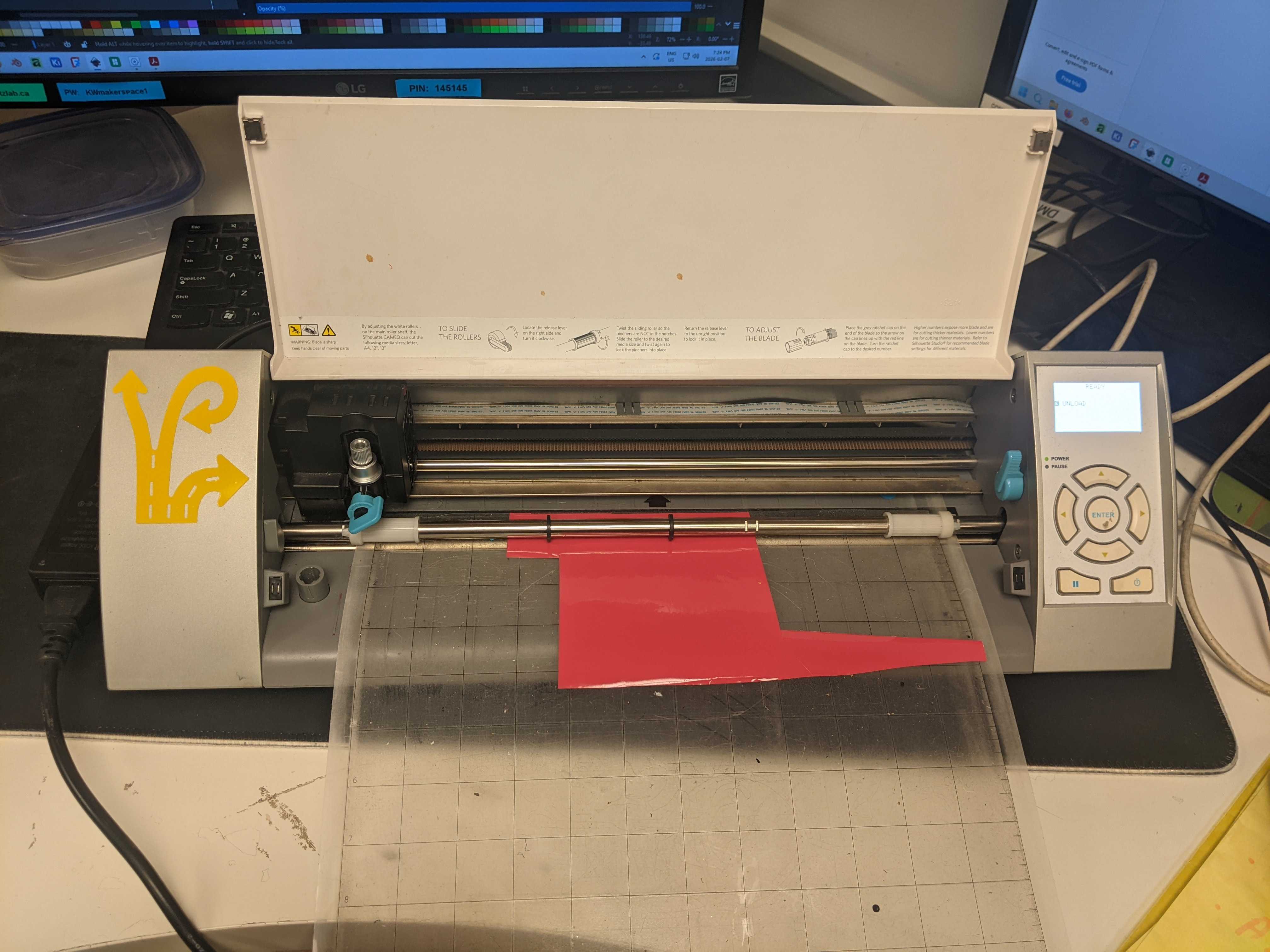
¶ Silhouette Cameo 1 Plotter Cutter
¶ Make: Silhouette
¶ Model: Cameo 1
Serial number: T303A161906
¶ Tool Notes
Manual: Quick Start Guide (Google Drive Backup). Support Page. Full documentation available in Silhouette Studio under the Help menu. Additional hardcopy tutorials can be found in the yellow folder on the shelves with the Silhouette.
Adhesive mats can be found on the same shelves as the Silhouette. Please cover the sticky side with plastic/wax paper when not in use to preserve their life.
The blade installed in the Silhouette does not have any numbers on it, it may be an aftermarket replacement. You may have to dial in blade height by trial and error. Start with a shallow cutting depth: Going too deep may cut into the adhesive mat, damaging it.
Silhouette Studio is the official software to operate the Silhouette Cameo 1, and what should be used here.
Our version of Silhouette Studio cannot import SVG files directly. However, it can import DXF files, and Inkscape, also installed on the computer, can convert SVGs to DXFs. Simply open your SVG in Inkscape, save it with File > Save As (or File > Save a Copy), and select Desktop Plotting Cutter (AutoCAD DXF R14) (*.dxf) in the filetype in the “Save as Type” dropdown. A dialogue will appear with settings for exporting: uncheck “Use LWPOLYLINE type of line output”, and check “Use Document unit as base unit”. You can open the saved DXF file in Silhouette Studio.
When importing a DXF, you may find it resized to fit the page. You can make it import regular size by going to “Edit > Preferences > Import” and under DXF import selecting “center” or “as-is”. The official documentation says that the software is incapable of consistently importing DXF files at the correct size due to limitations of the file format, though, so you would be advised to double-check the dimensions in the software. Anecdotally, it seems to import at the correct size from a fresh Inkscape document.
¶ Area
¶ Maintained by team
¶ Safety:
Can Guests use: Yes
Training Required: No
Tool Status: Working